
Somewhere in your home there is a box. It holds VHS tapes with handwriting on the spine, a spindle of burned CD-Rs, a wallet of photographs from a developing lab, and possibly a camcorder with a cassette still in it. Every object in that box is running two clocks at once. The first is the media itself, slowly oxidising, delaminating or fading. The second is the machine that reads it, which is no longer manufactured and is getting harder to replace every year. Whichever clock runs out first ends the story, and for most households it will be the second one.
That is the reason this guide exists and the reason it is organised the way it is. digitizing old media is not one job, it is six or seven small jobs, each defined by a format and the machine that machine-reads it: tape, disc, paper, negatives, books, and the labelling and power that hold the whole effort together. The seven products below cover those roles rather than competing with one another. There is one capture box for analogue video, one drive for optical discs, one camera, one guillotine for preparing paper, one label printer, one bulk charger for legacy kit, and one honest argument for not scanning your books at all.
Every product here has been scored in a full review on this site, and each entry links to it. Prices and Amazon ratings were read on the morning of publication and move constantly, so treat them as a guide to the tier rather than a quote.
We judged them on four things: whether the role is real, whether the thing actually finishes the job unattended, what it costs to run rather than to buy, and whether it works for readers on both sides of the Atlantic — because digitizing old media is one of the few topics where the United States and the United Kingdom genuinely diverge, in video standards, in disc region coding and, most sharply of all, in what the law permits. Product links go to Amazon.com; readers in Britain can search the same models on Amazon.co.uk, and the section on PAL versus NTSC explains which of them you should check twice before ordering.
Digitizing Old Media — Quick Comparison
Seven roles, not seven rivals. Each row is a different job in the same project, and the scores are from our own full reviews.
| # | Product | Role | Key spec | Best for | Price | Score |
|---|---|---|---|---|---|---|
| 1 | Portta VD10 VHS to Digital Converter | The tape | Standalone recorder, records to USB or SD, RCA and HDMI out, remote | Tape, if you still have a player | $109.98 | 8.2 |
| 2 | Rioddas External CD/DVD Drive | The disc | USB 3.0, reads and writes CD and DVD, max 24x CD / 8x DVD, bus powered | Burned CDs and DVDs | $18.69 | 8.6 |
| 3 | Apple iPhone 17 | The camera | 48MP main camera, on-device document and photo scanning, direct upload to cloud storage | Prints, documents and albums | $1,053 | 9.0 |
| 4 | Swingline ClassicCut Lite 9312 Paper Cutter | The paper | 12-inch cut length, 10-sheet capacity, self-sharpening blade, alignment grid | Preparing loose paper | $36.84 | 8.4 |
| 5 | DYMO LetraTag 100H Label Maker | The labelling | Handheld thermal label printer, bundle includes three LT tape cassettes | Keeping track of it all | $44.99 | 8.5 |
| 6 | BONAI 16-Bay AA/AAA Battery Charger | The power | 16 independent bays, AA and AAA NiMH, per-bay LED status, ~3.5 hour charge | Running legacy hardware | $29.44 | 8.2 |
| 7 | Amazon Kindle Paperwhite (2024) | The shelf you should not scan | 7-inch glare-free display, 16GB, weeks of battery, adjustable warm light | Books you should rebuy | $124.99 | 9.1 |
The 7 Best Tools for Digitizing Old Media in 2026
Listed in the order you meet them in a real project: the formats whose players are disappearing fastest come first, and the supporting kit that keeps a long project moving comes last.
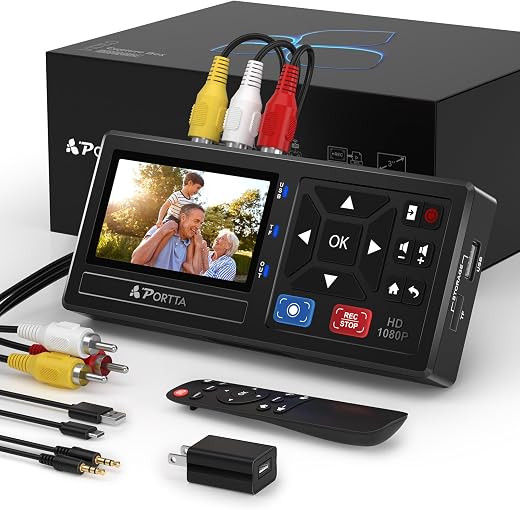
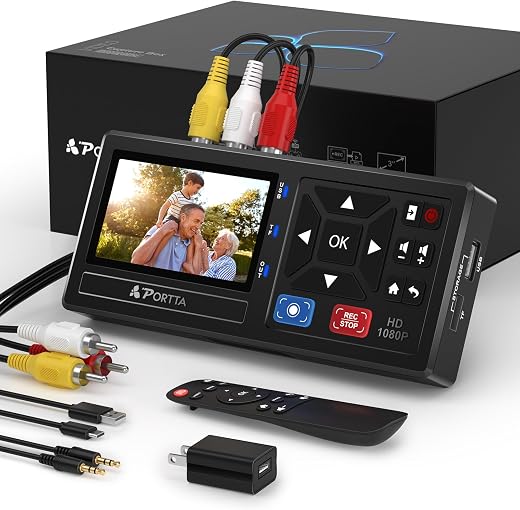
1. Portta VD10 — Best for Digitizing Old Media on Tape
Price: $109.98 | Amazon rating: 4.5 / 1,976 ratings | Role: The tape | Key spec: Standalone recorder, records to USB or SD, RCA and HDMI out, remote
Everything in a box of home video is stored as an analogue signal that no computer made this decade can accept. The Portta VD10 is the bridge. It takes composite RCA video and stereo audio in from a VCR, a camcorder or an old set-top box, encodes it, and writes an MP4 straight to a USB stick or SD card. There is no capture software, no driver, no PC in the chain at all — which matters, because half the frustration of digitizing old media historically came from capture cards that stopped being supported two Windows versions ago. A box that writes files by itself has no operating system to be abandoned by.
The workflow is genuinely simple. Connect the player, choose the input, press record on the box, press play on the tape, and walk away for two hours. It records in real time, because analogue tape plays in real time — nothing you can buy changes that, and any product claiming to speed it up is either skipping frames or lying. A three-hour tape takes three hours. Plan sessions around that rather than around your patience, and start with the tapes you care about least, so the ones that matter get captured after you have made your mistakes.
The single most important thing to understand before ordering is printed in the listing itself: VCR, VHS/DVD player or camcorder required. The VD10 is a recorder, not a player. It has no tape transport. If your VCR died in 2011 and went to the tip, this box does nothing for you until you find another one, and second-hand video recorders are now the expensive, unreliable half of the job. That is the whole argument of this guide in one sentence — the media is not usually what stops you, the machine is.
Best for: Anyone who still has a working VCR or camcorder and a stack of tapes. It is also the right pick if you want files rather than DVDs, and if you would rather not install capture software on a laptop you depend on.
Skip if: You have no player. You have fewer than about five tapes, in which case a mail-in service costs less than the box plus a second-hand VCR. Or your tapes are visibly mouldy or shedding oxide, which is a job for someone with a cleaning machine and a spare transport.
Read the full Portta VD10 VHS to Digital Converter review →
Where to Buy — Portta VD10 VHS to Digital Converter
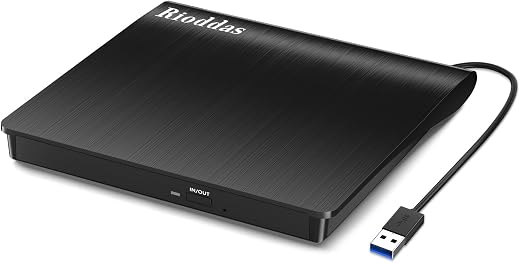
2. Rioddas External CD/DVD Drive — Best for Digitizing Old Media on Disc
Price: $18.69 | Amazon rating: 4.3 / 40,741 ratings | Role: The disc | Key spec: USB 3.0, reads and writes CD and DVD, max 24x CD / 8x DVD, bus powered
Optical drives disappeared from laptops so quietly that most people did not notice until they needed one. The result is a generation of burned CD-Rs and DVD-Rs — wedding videos, baby photos from a developing lab, university coursework, ripped music, the disc the photographer handed you in 2007 — sitting in a drawer next to no machine that can open them. At under twenty dollars, this drive is the cheapest useful thing in this entire guide, and for most households it is the first step in digitizing old media because the discs are the easiest win.
It is bus powered over a single USB 3.0 cable, so there is no wall wart, and it is recognised without drivers on Windows and macOS. Read speeds top out at 24x for CD and 8x for DVD, which sounds slow next to a hard drive and is irrelevant here: a full data DVD copies in a few minutes, and a scratched disc will be limited by error correction long before it is limited by the drive. Copy the disc contents to a folder on your computer rather than opening files in place — you want the drive touching each disc once, not repeatedly.
Where a cheap drive earns its money is triage. Discs fail unpredictably, and the only way to find out which of your forty are still readable is to put all forty in a drive. Do that first, before you buy anything else, because the results reshape the whole project: if the discs read cleanly you have bought yourself years, and if three of them fail you have just learned that the rest are on borrowed time and the schedule needs to move.
Best for: Every household with a shelf of burned discs, and anyone whose laptop has no optical drive. It is also the right first purchase if you are not yet sure how big your project is, because it tells you cheaply.
Skip if: Your discs are commercial Blu-rays, which this will not read. Or your library is mostly commercial region-locked DVDs — consumer drives ship in RPC-2 form and allow only a handful of region changes before locking permanently.
Read the full Rioddas External CD/DVD Drive review →
Where to Buy — Rioddas External CD/DVD Drive
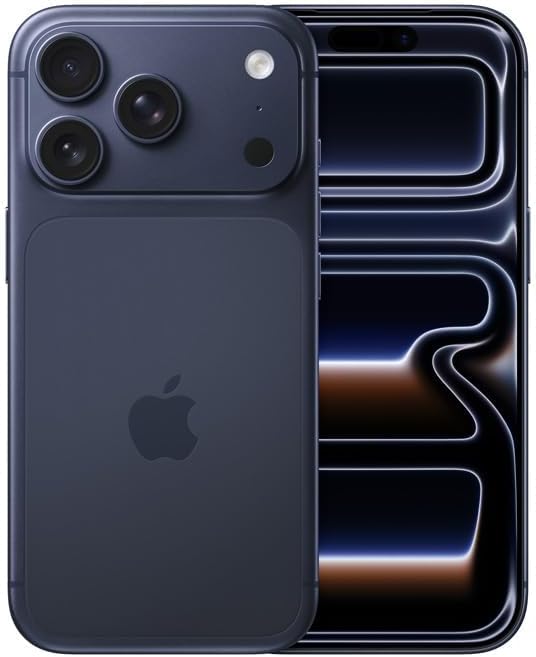
3. Apple iPhone 17 — Best for Digitizing Old Media on Paper
Price: $1,053 | Role: The camera | Key spec: 48MP main camera, on-device document and photo scanning, direct upload to cloud storage
The most capable scanner in most homes is already in a pocket. A current phone camera resolves a 6×4 print far beyond what the print itself contains, corrects perspective automatically, and uploads as it goes. For prints, documents, certificates, letters, album pages that cannot be dismantled and objects that are not flat at all, a phone is faster than a flatbed scanner by an order of magnitude — and speed is what decides whether a shoebox actually gets finished. Nobody abandons a project because the quality was too low. They abandon it because it was taking too long.
The technique matters more than the phone. Work in bright, indirect daylight near a window, never under a single ceiling bulb, which throws a hotspot across glossy prints. Shoot square on, fill the frame, and use the built-in document mode for anything with straight edges so the crop and de-skew happen automatically. For a whole album, photograph the pages in order and let the file timestamps carry the sequence. Then shoot one frame of the album cover and one of any handwriting on the back of a print, because the writing is often the only surviving caption.
Being honest about this entry: nobody should buy a flagship phone in order to start digitizing old media. It earns its place here because it is the tool most people will actually use, and because if you happen to be replacing a phone anyway, the camera is the part of the upgrade that pays off for this job. The iPhone 17 scores 9.0 in our own review on general merit, not on scanning — but the scanning is the free capability nobody advertises.
Best for: Prints, paperwork, bound albums, letters, medals, negatives held to a light source, and anything three-dimensional. It is also the only tool here that produces a shareable file in the same second it captures it.
Skip if: You already carry a phone from the last three or four years — it will do this job almost identically, and the upgrade buys you very little for archiving specifically. Buy the drive, the cutter and the label maker instead.
Read the full Apple iPhone 17 review →
Where to Buy — Apple iPhone 17
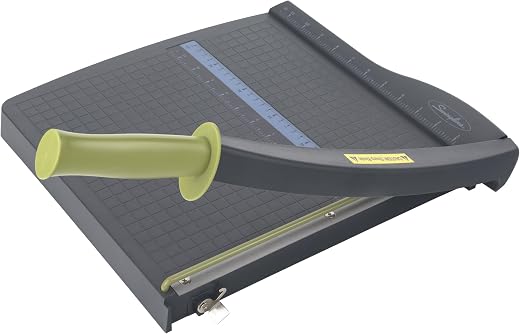
4. Swingline ClassicCut Lite 9312 — Best Digitizing Old Media Prep Tool for Prints
Price: $36.84 | Amazon rating: 4.6 / 19,856 ratings | Role: The paper | Key spec: 12-inch cut length, 10-sheet capacity, self-sharpening blade, alignment grid
Paper arrives at a digitizing project in awkward shapes. Prints are glued to card mounts, photographs have decorative deckled borders that confuse automatic cropping, documents are stapled into bundles, and school photo packs come as uncut sheets of six. A guillotine turns all of that into flat, square, consistent originals that a camera or scanner handles without complaint. It is unglamorous, and it is the difference between a folder of neatly cropped images and a folder that needs an hour of editing per hundred frames.
The 9312 has a 12-inch cut length, which is the number that matters and the number worth checking against your paper. Twelve inches takes US Letter in either orientation with room to spare, and it takes A4 — 297 mm, or 11.7 inches — along its long edge, so British readers are covered too, if only just. Ten sheets at a time is a realistic working figure rather than a marketing one; push it to fifteen and the bottom sheets drag. The alignment grid and edge guide are what deliver square cuts repeatably, and square is the whole point.
One warning, stated plainly because it cannot be undone: cutting is irreversible, and a guillotine in a digitizing old media workflow is for material you have already decided is expendable in its physical form. Trimming a modern reprint, a duplicate, a photocopy or the backing card off a mount is fine. De-spining a bound book so it feeds through a scanner is a real archival technique and also a permanent destruction of that book. Never point it at anything signed, inscribed, one-of-one or older than you are.
Best for: Shoeboxes of loose prints, stacks of paperwork, duplicates and reprints, and anyone who wants consistent crops without editing every frame afterwards. Also excellent for trimming the finished prints you make later.
Skip if: Your paper is irreplaceable, valuable, inscribed or archival. Photograph it as-is and crop in software. A cutter is also overkill if you have fewer than fifty sheets — scissors and patience will do.
Read the full Swingline ClassicCut Lite 9312 Paper Cutter review →
Where to Buy — Swingline ClassicCut Lite 9312 Paper Cutter
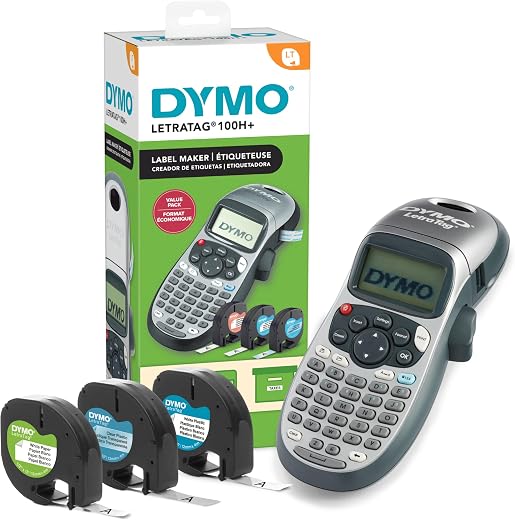
5. DYMO LetraTag 100H — Best Digitizing Old Media Pick for Labelling
Price: $44.99 | Amazon rating: 4.6 / 31,258 ratings | Role: The labelling | Key spec: Handheld thermal label printer, bundle includes three LT tape cassettes
Every archivist will tell you the same thing and every hobbyist will ignore it: the copy is worthless if nobody can tell what it is. A hard drive called New Folder (3) containing 4,000 untitled MP4 files is not an archive, it is a landfill with a USB socket. Labelling is the least interesting part of digitizing old media and the part that decides whether the work survives the person who did it. A handheld label printer is how you attach a human-readable name to the physical objects — the tape, the box, the drive, the shelf.
The practical system is simple. Number every physical item before you capture it, put the same number in the file name, and keep a one-page index. Tape 014 becomes 014-nan-birthday-1994.mp4, and the physical tape wears a printed label reading 014. Now a file and an object can always be reunited, and a second person can pick the project up cold. Printed labels beat handwriting here for a dull reason: thermal print does not smudge, does not fade in a loft, and is legible to whoever inherits the box.
The 100H is a bundle with three tape cassettes, which is roughly the point at which a label maker stops being an impulse purchase and starts being a supply. Consumable cost is the real running expense — check the price of LT tapes before committing, because a cheap printer on expensive tape is a false economy. It is a handheld device with a small screen and a dial, not a desktop printer, so it is slow for hundreds of labels and perfect for the dozens most people need.
Best for: Anyone digitizing across more than one session, anyone with boxes going back into storage, and anyone who wants the drive itself labelled with what is on it and the date it was written.
Skip if: You are doing ten items this afternoon and naming files as you go. At that scale a pencil and masking tape are genuinely fine, and the money is better spent on the drive.
Read the full DYMO LetraTag 100H Label Maker review →
Where to Buy — DYMO LetraTag 100H Label Maker
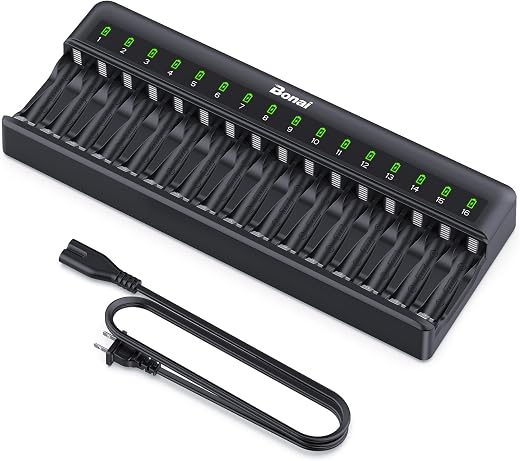
6. BONAI 16-Bay Charger — Best Digitizing Old Media Pick for Powering Old Kit
Price: $29.44 | Amazon rating: 4.6 / 2,459 ratings | Role: The power | Key spec: 16 independent bays, AA and AAA NiMH, per-bay LED status, ~3.5 hour charge
Old equipment runs on old power. The camcorder remote, the tape rewinder, the light meter, the portable CD player, the slide viewer, the LED panel you are lighting prints with and the wireless mouse on the machine doing the capturing all take AA or AAA cells, and a long digitizing session drains a surprising number of them. Sixteen independent bays means you charge a full set for a weekend’s work in one go rather than cycling four at a time through a charger designed for a TV remote.
Independent control per bay is the specification that matters and the one cheap chargers skip. Paired-bay chargers treat two cells as one and overcharge whichever is healthier, which is how a drawer full of tired NiMH cells happens in the first place. Per-bay charging with its own LED lets you see exactly which cells are taking a charge and which are dead, and a session spent sorting the drawer is worth doing once. Charge time is around three and a half hours for a full complement, so set it going the night before.
Be clear-eyed about where this sits. It is a support tool, not a capture tool, and if every device you own charges over USB-C you do not need it. But the reason it belongs in a guide about digitizing old media is that this project uniquely drags old hardware out of storage, and old hardware predates USB-C by twenty years. Note also that this is sold with a standard American plug; UK buyers need an adapter or a domestic equivalent.
Best for: Anyone with a drawer of NiMH cells and a pile of legacy equipment to run, and anyone who would rather not buy disposable batteries for a project measured in weekends.
Skip if: Everything in your workflow charges over USB-C, or you only own a handful of cells. A four-bay charger is cheaper and takes less shelf space.
Read the full BONAI 16-Bay AA/AAA Battery Charger review →
Where to Buy — BONAI 16-Bay AA/AAA Battery Charger
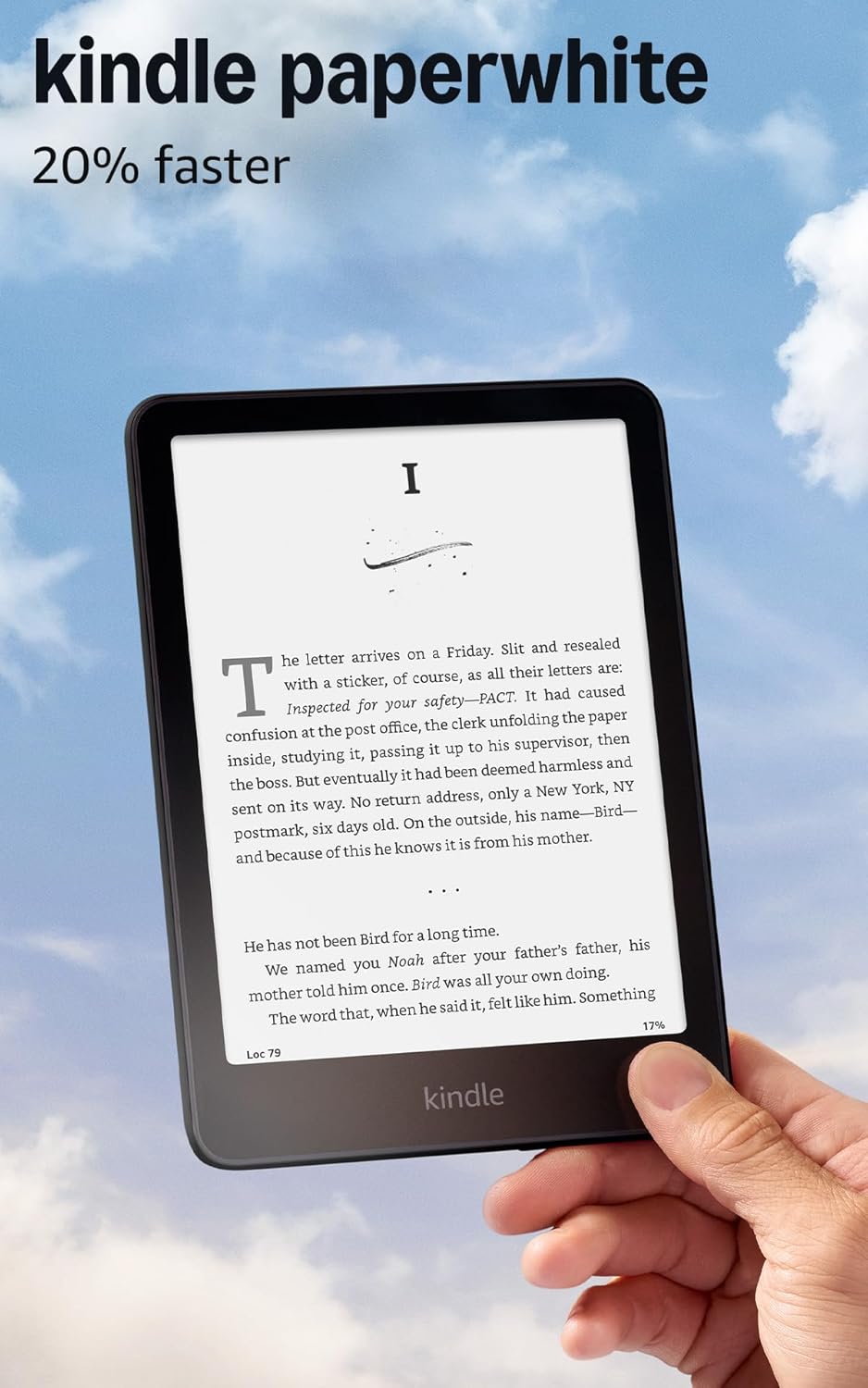
7. Kindle Paperwhite (2024) — Best Digitizing Old Media Alternative for Books
Price: $124.99 | Role: The shelf you should not scan | Key spec: 7-inch glare-free display, 16GB, weeks of battery, adjustable warm light
This is the entry that argues against itself. Books are the one category of old media where do-it-yourself digitizing is almost always the wrong answer. Scanning a paperback means destroying it or spending an evening per volume photographing pages by hand, and the output is a worse reading experience than the licensed digital edition you can buy in ten seconds. The Paperwhite is here as the honest alternative: for anything still in print, rebuy rather than rebuild, and spend the time you saved on the tapes nobody else has a copy of.
There is a legal dimension too, and it points the same way. In the United Kingdom the personal copying exception that briefly made format-shifting lawful was quashed by the High Court in 2015, so copying a book, CD or DVD you own into a digital file is not covered by any exception — a fact almost nobody knows. Buying the licensed copy sidesteps the question entirely. In the United States the analysis is different and more permissive in practice, but the practical conclusion is identical: your effort belongs on the unique material.
As a device it is straightforward and very good, which is why it scores 9.1 in our review. The seven-inch glare-free screen reads like paper in direct sun, the warm front light makes evening reading comfortable, and battery life is measured in weeks rather than days. Sixteen gigabytes holds a library. In the context of digitizing old media its real function is to take the largest and least rewarding category off your list before you start.
Best for: Anyone whose ‘to digitize’ pile secretly contains two shelves of ordinary paperbacks. Buying those digitally is faster, cheaper in time and legally cleaner than scanning them.
Skip if: Your books are annotated, inscribed, out of print or family-made. Those are unique documents and belong in front of the camera, page by page — a Kindle cannot help with them at all.
Read the full Amazon Kindle Paperwhite (2024) review →
Where to Buy — Amazon Kindle Paperwhite (2024)
digitizing old media — Buyer’s Guide: What to Look For
Almost every guide to digitizing old media is a list of capture devices. That is the wrong shape, because the capture device is rarely the constraint. What follows is the set of questions that actually determine whether a project finishes.
Digitizing Old Media Starts With Auditing the Machines, Not the Media
Before buying anything for digitizing old media, walk round the house and write down what you still own that can play something. A working VCR, a camcorder with a functioning tape transport, a laptop with an optical drive, a slide projector, a cassette deck. Then write down the formats in the box. The gap between those two lists is your actual project.
This ordering matters because it changes what you buy. If you have four VHS tapes and no VCR, buying a capture box is the wrong first move — you would be buying the cheap half of a two-part problem. If you have forty tapes and a working VCR in the loft, the capture box is the single highest-value purchase you can make, and you should make it this month while the VCR still works.
Judge the Running Cost of Digitizing Old Media, Not the Sticker Price
The purchase price of digitizing old media equipment is usually the smallest number in the project. Label tape cassettes, blank media, a hard drive large enough for the output and a second drive for the backup copy will comfortably exceed the price of the capture hardware. Standard-definition video captured at reasonable quality runs roughly one to two gigabytes per hour, so a hundred hours of family tape is a couple of hundred gigabytes — trivial for a modern drive, but not something to discover halfway through.
Consumables are where cheap tools become expensive. A label printer with costly proprietary tape, a capture box that only writes to a card format you do not own, or a drive that needs its own power supply all add cost after the fact. Check what each device eats before you buy it.
Prefer devices that work without a computer
Anything that depends on bundled software has an expiry date set by someone else’s support policy. Capture cards from fifteen years ago are mostly bricks now, not because the hardware failed but because the driver was never signed for a later operating system. A standalone recorder that writes a plain MP4 to a plain USB stick has no such dependency, and neither does a drive that mounts as ordinary storage.
Where software is unavoidable, favour output in ordinary, widely supported formats. An MP4, a JPEG, a WAV or a PDF will still open in twenty years. A proprietary project file from a bundled utility very probably will not, and you will have spent a hundred hours creating a second obsolescence problem to replace the first.
Work out where the quality ceiling actually is
People agonise over capture resolution for material that has none. A VHS recording holds roughly 240 lines of usable horizontal detail; capturing it at higher settings produces a larger file containing the same picture. Conversely, a 35mm negative holds far more information than a phone photograph of it, so that is a case where better equipment genuinely buys something. Know which side of that line each format sits on before spending.
The practical rule for digitizing old media is to capture once, at the best quality the source justifies, and never plan to redo it. Every pass through a tape transport costs a little of the tape. Treat the capture as the last time that object will ever be played, because for a lot of collections it genuinely is.
Decide Which Parts of Digitizing Old Media You Will Not Do Yourself
Three categories are usually better outsourced: 8mm and Super 8 cine film, which needs a frame-by-frame telecine rather than a video capture; audio reel-to-reel; and any tape that is visibly damaged, mouldy or shedding. A mail-in service is also simply cheaper than DIY below about five items, once you count the hardware you would need to buy. There is no prize for doing all of it yourself, and a service that ruins a tape at least has to answer for it.
US vs UK: What Changes When You Are Digitizing Old Media
Most buying guides for digitizing old media treat the two markets as interchangeable. For this topic they are not, and the differences are not cosmetic — one of them will stop a British reader’s project dead if they buy the wrong box.
Digitizing Old Media or Digitising Old Media? The Spelling Matters
Americans write digitizing; Britons write digitising. This article uses the American spelling throughout because its product links point to Amazon.com, but if you are searching for troubleshooting advice from a British forum or a British archive, try the -ising spelling as well — you will surface a different and often more relevant set of results. The same applies to digitisation, which is the word The National Archives uses.
PAL versus NTSC: the difference that actually breaks things
This is the important one. American analogue video is NTSC: 525 scanning lines at very close to 30 frames per second. British and most European analogue video is PAL: 625 lines at 25 frames per second. They are not compatible, and a tape recorded in one standard will not produce a stable picture on equipment expecting the other.
The practical consequence for digitizing old media is that a capture device sold into the American market may be built to accept NTSC only. If you are in the UK feeding it a British-recorded VHS tape, it may show a rolling, black-and-white or completely absent picture. Before ordering any converter from a US listing, confirm that it accepts PAL input, or buy the equivalent unit from the UK marketplace where PAL support is the default. This single check is worth more than every other specification on the box.
Region codes, voltage and plugs
Region coding is the next trap in digitizing old media. Commercial DVDs are region coded — Region 1 for the United States and Canada, Region 2 for the UK and Europe — and consumer drives are shipped in a mode that allows only a small number of region changes before the setting is locked permanently. If your disc collection spans both regions, plan which region you will settle on before you start, because you do not get many chances to change your mind. Data discs and home-burned DVDs are unaffected.
Legacy playback hardware is worse. A second-hand VCR bought in the United States expects roughly 120 V at 60 Hz; British mains is 230 V at 50 Hz. Do not buy old playback equipment across the Atlantic. Even modern accessories can carry the assumption — the bulk battery charger in this guide is sold with a standard American plug and will need an adapter in a British socket.
The Law on Digitizing Old Media: A Genuine and Under-Reported Divergence
Here the two countries part company completely. In the United Kingdom, a personal copying exception permitting format-shifting was introduced in October 2014 and then quashed with prospective effect by the High Court on 17 July 2015, in the case brought by the British Academy of Songwriters, Composers and Authors. The legislation database still carries the annotation. The upshot is that copying a CD, DVD or book you lawfully own into a digital file is not covered by any general exception in British law, and almost nobody realises it.
The United States has no directly equivalent private-copying provision either, but it does have fair use, and it has a statutory framework for institutions that Britain applies more narrowly. It also runs a triennial rulemaking that grants temporary exemptions from the anti-circumvention rules; the current set took effect on 28 October 2024 and covers, among other things, libraries and archives circumventing protection on computer programs and video games solely for lawful preservation.
None of this is legal advice, and in practice nobody is prosecuting a grandparent for copying their own wedding video. But it does shape a sensible rule of thumb: your own home recordings are yours to copy in both countries, and commercially published material is the grey area. Spend your effort on the material nobody else has.
What the two national archives actually recommend
Both countries publish digitisation standards for digitizing old media, and they are useful even for household projects. The National Archives in the UK specifies a default of 300 PPI for ordinary documents, 600 PPI for photographs and up to 4000 PPI for transparencies, with 24-bit colour and JPEG 2000 for preservation masters. In the United States the equivalent body is the Federal Agencies Digital Guidelines Initiative, whose third-edition still-image guidelines were finalised in 2023 and are the reference most American institutions cite.
Vocabulary you will trip over
The box is in the loft in Britain and the attic in America. A VCR is often just a video recorder or video in British usage. Americans have home movies; Britons are as likely to say home videos. A USB flash drive is frequently a memory stick in the UK. Paper is Letter in the US and A4 in the UK, which is why the 12-inch cut length on the guillotine in this guide matters: A4 is 297 mm, or 11.7 inches, so it fits along its long edge with barely a quarter-inch to spare.
digitizing old media — Which One Should You Buy?
Three realistic budgets for digitizing old media, depending on what is actually in the box and how much of it there is.
Under $50: find out what you have
Buy the Rioddas external CD/DVD drive and nothing else. It is under twenty dollars, it costs you nothing to own, and it answers the only question that matters at the start: how much of your collection is still readable? Feed it every disc you own over a weekend. If they all read, your discs are fine and your attention belongs on the tapes. If several fail, you have learned something urgent and cheap.
If your project is paper rather than discs, spend the same money on the Swingline ClassicCut Lite 9312 instead and start trimming duplicates and reprints into consistent, square originals. Either way, the entry-level approach to digitizing old media is diagnosis before equipment.
$50 to $200: The Working Digitizing Old Media Kit
This is where most households should land. Add the Portta VD10 converter at $109.98 if — and only if — you have a working player, and pair it with the DYMO LetraTag 100H so that every tape, box and drive gets a printed number that matches its file name. With the drive, the cutter and the label maker, that is a complete workflow for tape, disc and paper for well under two hundred dollars.
Add the BONAI 16-bay charger at $29.44 if your legacy hardware runs on AA and AAA cells, which most of it will. It is the least exciting purchase in this guide and the one that stops a Saturday session ending early because the camcorder remote died.
Over $200: the whole-house project
At this level you are digitizing old media of every kind, and the two expensive entries earn their place for different reasons. The Apple iPhone 17 at $1,053 is not a purchase to make for this project — but if you are replacing a phone anyway, its camera becomes the most-used scanner in the house, handling prints, albums, documents and objects faster than any flatbed. The Kindle Paperwhite at $124.99 is the opposite kind of spend: it takes an entire category off your list by making the case that books should be rebought rather than scanned.
If you are buying at this level, budget for two external hard drives rather than one, and keep them in different buildings. Everything else in this guide is about making copies; only that last step is about keeping them.
The Two Clocks Behind Digitizing Old Media
The reason digitizing old media has a deadline is not sentiment.
It is not nostalgia either. It is that two independent countdowns are running on every object in the box, and the published evidence on both is more specific than most people expect.
Clock one: how long the media itself lasts
Optical discs are the best-documented case in digitizing old media. The CLIR and NIST guidance prepared for librarians and archivists estimates that “under recommended storage conditions, CD-R, DVD-R, and DVD+R discs should have a life expectancy of 100 to 200 years or more”, while rewritable discs — “CD-RW, DVD-RW, DVD+RW, and DVD-RAM” — “should have a life expectancy of 25 years or more”. Pressed commercial discs are less predictable: “expectations vary from 20 to 100 years for these discs.”
Those are laboratory figures under recommended conditions, and the same guidance is blunt that conditions are what decide the outcome. “High temperatures and humidity will accelerate the process” of dye degradation, and “prolonged exposure to UV light can degrade the dye properties and eventually make the data unreadable”. A spindle in a sunny conservatory is on a very different schedule from one in a cupboard.
For magnetic tape the Library of Congress recommends, for home collections, “a cool (room temperature or below), relatively dry (about 35-40% relative humidity or RH)” environment — which, for British readers, is an argument against the loft and an argument for the bottom of a wardrobe. Its handling guidance includes one instruction almost everyone gets wrong: “store played tapes without rewinding; rewind just before playing.”
Clock two: how long the machine lasts
The second clock is the one that catches people out and the one that makes digitizing old media urgent, and American copyright law contains the sharpest definition of it anywhere. Under the provision governing reproduction by libraries and archives, a format is treated as obsolete when “the machine or device necessary to render perceptible a work stored in that format is no longer manufactured or is no longer reasonably available in the commercial marketplace.”
That is a legal test written for institutions, but it is also the most useful sentence a household can apply to its own shelves. It puts the emphasis exactly where it belongs. Your VHS tapes are not obsolete because they are old; they are obsolete because nobody makes a machine that plays them. The same statute permits qualifying institutions to make “three copies or phonorecords” of a published work for replacement purposes when the existing format has become obsolete — an acknowledgement in law that copying is the only preservation strategy that works.
This is why the audit comes before the shopping, and why the capture box in this guide carries a warning in its own product listing that a “VCR, VHS/DVD player or camcorder” is required. The recorder is the easy half. The player is the half that is quietly disappearing.
How good does the copy need to be?
Institutional standards for digitizing old media are a helpful anchor even at household scale. The National Archives specifies “a default of 300 PPI for ordinary documents”, with photographs at 600 PPI and transparencies as high as 4000 PPI, captured in “24 bit colour using the Enumerated sRGB colourspace profile” and delivered for preservation as JPEG 2000 files. Its metadata requirements go further still, down to SHA256 checksums for every file.
No household needs checksums. But the resolution ladder is worth copying, because it encodes a real principle: the finer the original detail, the higher you capture. A typed letter at 300 PPI is complete. A photographic print benefits from 600. A 35mm negative or slide holds so much more that 4000 PPI is not excessive — and that is the one case in digitizing old media where a phone photograph is genuinely inadequate and a dedicated film scanner or a service is worth the money.
What to Do With the Files After Digitizing Old Media
This is the step people skip, and skipping it wastes the entire project. It is the last stage of digitizing old media and the only one that is about keeping rather than copying. The Library of Congress’s own advice to home users is refreshingly concrete. “Make at least two copies of your selected videos—more copies are better”, and “store copies in different locations that are as physically far apart as practical”. Then, crucially, maintain them: “check your saved video files at least once a year to make sure you can read them”, and “create new media copies every five years or when necessary to avoid data loss”.
The same guidance covers the unglamorous part that makes an archive usable: “give individual videos descriptive file names”, “tag videos with names of people and descriptive subjects”, “create a directory/folder structure”, and “write a brief description of the directory structure and the videos”. That last instruction is the one worth taping to the wall. A one-page README explaining what the folders mean is the difference between an archive and four thousand orphaned files.
The Honest Case for Outsourcing Part of Digitizing Old Media
A mail-in service is not a failure of nerve. Below roughly five items the economics favour it outright, because the hardware alone costs more than the transfer. Cine film needs equipment no household should buy. Damaged, mouldy or shedding tape needs a technician with a cleaning machine and a transport they are willing to sacrifice. And a service will finish, whereas a box in a spare room has a documented tendency not to.
Where DIY wins is volume, privacy and control. Forty tapes is a lot of money at per-item pricing, some material you would rather not post to a stranger, and only you know which twenty minutes of a three-hour tape actually matter. Most households end up splitting the job, and that is the right answer rather than a compromise.
digitizing old media — Frequently Asked Questions
Where should I start with digitizing old media if the box is overwhelming?
Start digitizing old media with the discs, because a twenty-dollar drive tells you within a weekend how much of your collection is still readable. Then move to whichever format you have a working player for, because that player is the thing most likely to fail next. Leave paper until last — paper is stable and will still be there in five years.
Do I need a computer for digitizing old media?
Not for video, if you buy a standalone recorder that writes files directly to a USB stick or SD card. You will need one eventually to organise, rename and back up the results, but the capture itself can happen entirely on the box. For discs and scanning, a computer or phone is unavoidable.
How long does it take to convert a VHS tape?
Exactly as long as the tape runs, which is the one part of digitizing old media no purchase can shorten. Analogue video plays in real time and there is no way around it — a three-hour tape is a three-hour capture. Any product implying otherwise is dropping frames. Budget your project in evenings, not hours, and run captures while you do something else in the same room.
My VCR is broken. Is it worth buying another one?
Only if you have real volume. Second-hand video recorders are now the least reliable and most expensive part of the chain, and a machine bought untested can eat a tape. With fewer than about ten tapes, a mail-in service will cost less than a working VCR and carries the risk for you.
Will an American capture box work with British tapes?
Not necessarily, and this is the single most important check in digitizing old media from a UK address. British tapes are PAL at 625 lines and 25 frames per second; American equipment may expect NTSC at 525 lines and roughly 30. Confirm PAL input support before ordering, or buy the equivalent model from the UK marketplace.
Is it legal to copy my own CDs and DVDs?
In the UK, surprisingly, there is no general exception permitting it: the personal copying provision was quashed by the High Court on 17 July 2015 and never replaced. In the US the position rests on fair use and is more permissive in practice. Home recordings you made yourself are a different matter in both countries — those are yours.
What resolution should I scan photographs at?
The National Archives uses 300 PPI for ordinary documents and 600 PPI for photographs, which is a sound household standard too. Negatives and slides are the exception: they hold far more detail, and institutional practice goes as high as 4000 PPI, which is beyond what a phone camera can extract.
Is a phone really good enough, or do I need a scanner?
For prints, documents and album pages, a current phone in good indirect daylight is genuinely excellent and vastly faster than a scanner at digitizing old media. For negatives, slides and anything where you want to recover detail the print never had, it is not — that is where a dedicated film scanner or a professional service earns its fee.
How should I store the files digitizing old media produces?
At least two copies, in physically separate locations, checked once a year and rewritten to fresh media roughly every five. That is the Library of Congress’s own advice to home users, and it is the part of digitizing old media that most people skip and later regret. A cloud copy counts as one of the two.
Should I keep the original tapes and discs afterwards?
Yes, for as long as you have space — digitizing old media does not mean throwing the originals away. A digital copy can be corrupted, misfiled or lost in a drive failure, and the original is the only thing you can go back to. Store the tapes cool and dry, unrewound, and put the printed label on the box so a future you knows what the file numbers refer to.
digitizing old media — Final Thoughts
The thing that finishes digitizing old media is not equipment, it is sequence. Audit the machines you still own, capture the formats whose players are closest to failing, label everything as you go, and back the results up twice before you congratulate yourself. The seven products here map onto that sequence rather than competing for the same slot, which is why the total cost of a genuinely complete kit — drive, converter, cutter, label maker and charger — comes to less than two hundred dollars.
If you take one thing away, make it the definition American copyright law uses for an obsolete format: the machine to play it is no longer made or reasonably available. By that test a great deal of what is in your loft is already obsolete, and the work of digitizing old media is a race against the second clock rather than the first. Start with the cheap diagnostic, be honest about what should be outsourced, and remember that the copy nobody can identify is not a copy worth having.
Sources and Further Reading
- 17 U.S. Code § 108 — Limitations on exclusive rights: Reproduction by libraries and archives (Legal Information Institute, Cornell Law School) — the statutory definition of an obsolete format.
- Copyright, Designs and Patents Act 1988, personal copies of recordings for private use (legislation.gov.uk) — carries the annotation that the amending instrument was quashed with prospective effect on 17 July 2015.
- Exemption to Prohibition on Circumvention of Copyright Protection Systems for Access Control Technologies (Federal Register, effective 28 October 2024).
- Ninth Triennial Section 1201 Proceeding, 2024 Cycle (U.S. Copyright Office).
- Care, Handling, and Storage of Audio Visual Materials (Library of Congress, Collections Care).
- Personal Archiving: Preserving Your Digital Memories — Video (Library of Congress, Digital Preservation).
- Care and Handling of CDs and DVDs: How Long Can You Store CDs and DVDs and Use Them Again? (Council on Library and Information Resources / NIST).
- NIST/Library of Congress Optical Disc Longevity Study, final report (Library of Congress).
- Digitisation at The National Archives (The National Archives, UK).
- Digitisation guidance (The National Archives, UK).
- Technical Guidelines for Digitizing Cultural Heritage Materials (Federal Agencies Digital Guidelines Initiative).
- 3rd Edition of FADGI Still Image Digitization Guidelines Finalized (The Signal, Library of Congress).
- Sustainability of Digital Formats: Planning for Library of Congress Collections (Library of Congress).
Disclosure: this article contains affiliate links. If you buy through them we may earn a commission at no additional cost to you. Prices and Amazon ratings were correct at the time of writing and change frequently; product links point to Amazon.com, and readers in the United Kingdom should search the same models on Amazon.co.uk and check PAL compatibility before ordering any video capture device. Nothing here is legal advice.